Record and replay signals
Radio Bench can record decoded audio or raw IQ samples. Both are saved as WAV files and can require substantial disk space.
Choose a recording folder
Open the RECORDING section in the left control column and select Folder. Radio Bench uses its data directory until you choose another location.
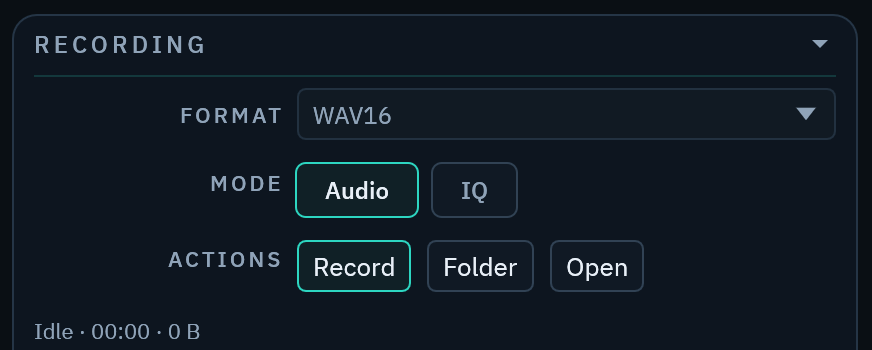
Confirm that the destination has enough free space. IQ files grow much faster than audio files.
Start a recording
- Start the SDR stream.
- Select
AudioorIQunderMODE. - Select
WAV16orWAV32underFORMAT. - Select
Record.
Stop the recording before you close the source. Radio Bench also finalizes an active recording during a normal application shutdown.
Replay IQ
Select the IQ File source, then choose a supported stereo IQ file. Metadata can restore center frequency and sample rate.
Use playback to examine a signal again without connected hardware. Playback stops at the end of the file unless you turn on Loop Playback.