Create a support report
Open Settings > Diagnostics to view application, SDR, DSP, audio, TX, and UI health. A fatal stream problem remains visible after shutdown.
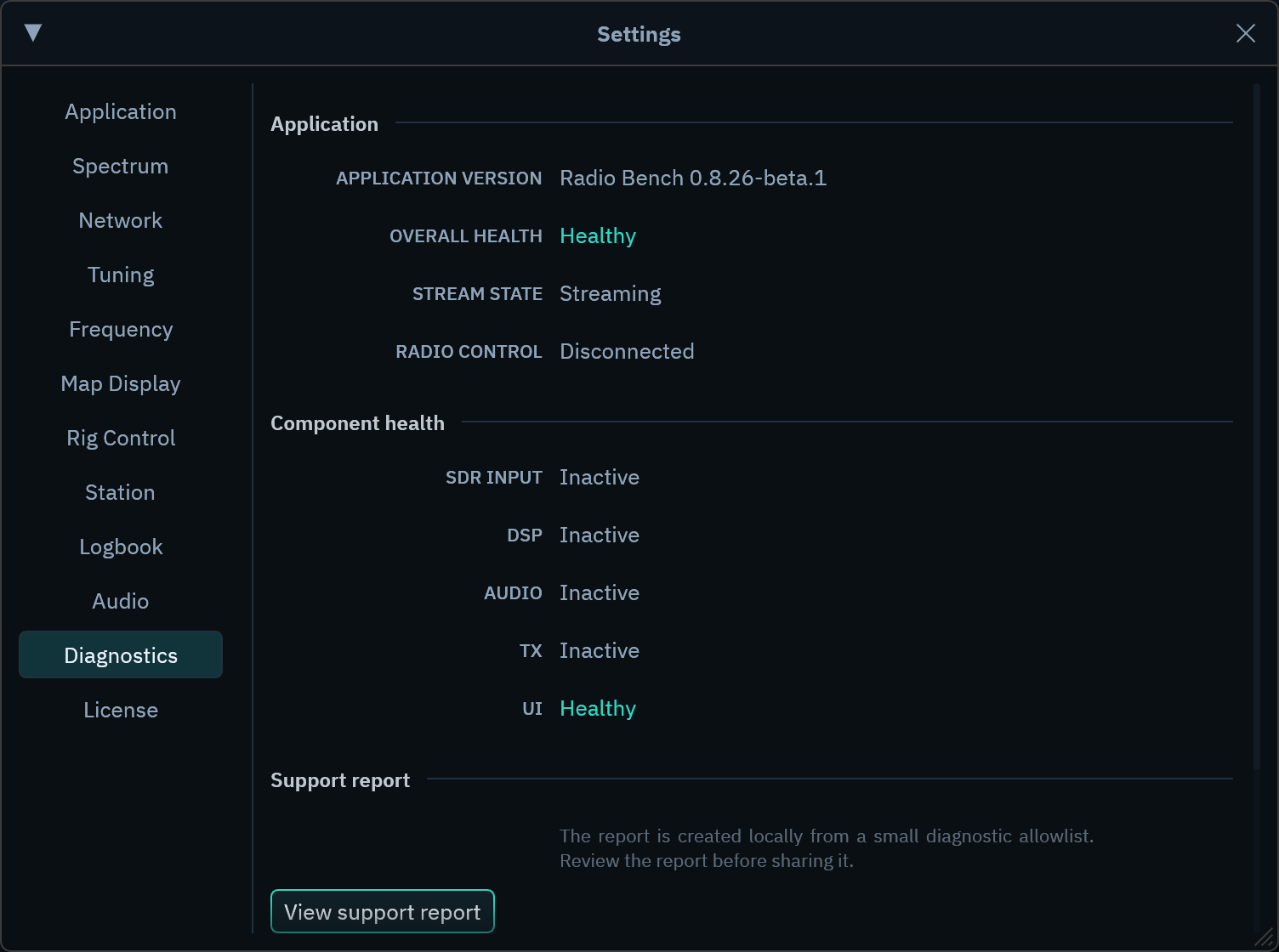
Create the report
- Select
View support report. - Review the complete report.
- Copy or save it.
- Attach it when you contact Radio Bench support.
Preview, copy, and save use the same report text. Radio Bench does not upload the report automatically.
Information in the report
The report can contain component state, source family, error codes, counters, and numeric hardware identifiers. It does not include tuned frequencies or callsigns.
It also excludes device serials, file paths, network addresses, credentials, raw errors, and application logs. Review the report before you share it.
Detailed diagnostics
Enable detailed diagnostics only when support asks for them. The setting adds additional timing measurements for the current session.
An amber DIAG indicator shows when detailed collection is active. Restarting Radio Bench returns diagnostics to the standard level.